Architecture Diagram Instructions
Describe services and systems with boxes, groups, shapes, and icons, and link them with arrows. The editor arranges the diagram and routes its arrows automatically.
Get Started
This is a two-way editor: type source text to update the diagram, or edit the diagram on the canvas to update the source.
- Choose New > Architecture to start from a template, or put @architecture on the first non-blank, non-comment line. Copy a complete example using the icon below an image, then paste it into the source editor.
- Declare elements with box, give them optional quoted labels, and connect their ids with ->. End each arrow with a colon, followed by an optional label.
- On the canvas, drag from a box border onto another box, then confirm the arrow's label in the editor. Double-click a box or arrow to edit its text.
Click an element to select only that element. Cmd/Ctrl-click adds or removes an element from the selection. Drag from empty canvas space to select fully enclosed boxes, containers and arrows; each selection rectangle replaces the previous selection. Existing box-border arrow creation and label-drag gestures keep their behavior.
Click empty space or press Escape to clear selection. Escape also cancels the current interaction. Press Delete to remove the selection and incident arrows; one Ctrl-Z restores the entire deletion. Deleting a container keeps its unselected contents and moves them up to the nearest remaining parent. Click in the source editor before using Delete to edit text.
See Editor Instructions for shared toolbar buttons, storage options, presentation modes, undo/redo, and source-editor shortcuts.
Architecture diagrams need Chrome or Edge 119, Firefox 120, Safari 18.2, or later; the IntelliJ plugin needs IntelliJ 2025.3.1 or later. An older browser, or a page that is not allowed to run WebAssembly, shows a message in place of the diagram; sequence diagrams are not affected.
Source Basics
- Write one declaration or arrow per line. Blank lines and indentation help readability; braces define nesting.
- Separate the parts of a line with one blank: a space, a tab, or any other single whitespace character. Two blanks between parts are an error. Blanks inside an id, a quoted label, a title's text, or an arrow's label belong to that text and are kept as written. Indentation (at most 100 characters) and blanks at the end of a line are free.
- On an arrow line a blank is optional, one at most, on either side of the arrow, between an id and its side, and on either side of the colon:
- api(e)->(w)db:reads: no blanks
- api (e) -> (w) db : reads: one at every place
- api->db: reads: after the colon and its blank the rest of the line is the label, here starting with a space
- Keywords and fixed values are lowercase and case-sensitive. Ids are also case-sensitive: api and API refer to different elements.
- Declare each id only once across the whole diagram, including nested elements. Arrows use ids, not display labels.
- Keep arrows, titles, style definitions, direction, routing, and spacing outside all container blocks.
- Write title, direction, routing, hspacing, and vspacing once each: a repeated line is marked as an error and the first one is used.
- See Source Editor for completions, error markers, and undo/redo.
Comments
- Start a line with # or // to add a comment. Comments do not appear in the diagram.
- Keep comments on their own lines; trailing comments are not supported.
- Comments may appear before @architecture without affecting mode selection.
Title
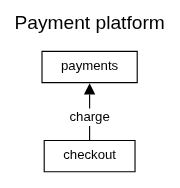
- title <text> draws a title above the diagram; it is declared at the root level, outside blocks
- title Shop: after title and its blank the rest of the line is the title, here starting with a space
- A diagram has one title: a second title line is marked as an error and the first one is used
- With file name synchronization enabled, the title is used as the file name
- On the canvas, click the title to select it, double-click it to edit it, and press Delete to remove it
Boxes and Labels
- box <id> declares a box. Without an explicit label, its id is displayed.
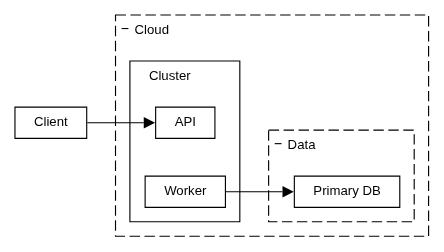
- A box with contents fits tightly around them; arrows to its contents bend outside the box.
- Add an optional quoted display label after the id: box api "Main API".
- An id has 1 to 100 characters. It may contain blanks, but not at its start or end. An id cannot:
- contain # < > , : { } " -- or -[; a single - is fine: api-gateway
- start with * - = [ //, the word title, or a keyword and a blank: box a and layer first are no ids, box and boxes a are
- be @architecture or @sequence
- end with * - = or ;
- end with a blank and a line style: box a ;2 is the box a with line weight 2, while a;2 and a ;b are ids
- Use short, plain ids such as api and put punctuation and styling in quoted labels. A quoted empty label, box api "", hides the label.
- Use \n inside a label for a line break. Labels may share the same display text even though ids must be unique.
- The sides (n), (e), (s), and (w) belong to arrow ends. An id cannot start or end with one, attached or after a blank: write a plural such as Worker(s) in the label, box workers "Worker(s)".
- Add: the add-element button adds box box_1, or the next free number, at once. To choose the id and label first, right-click and choose box or box− (collapsible).
- Edit: double-click the box. Renaming its id also updates its arrows.
- Move: drag its label into or out of a container. Positions are automatic; see Groups and Nesting.
- Delete: select the box and press Delete. Its attached arrows are removed; any contents are kept. A collapsed box is deleted with its contents.

Groups and Nesting
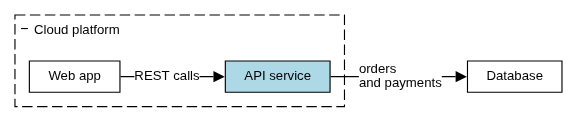
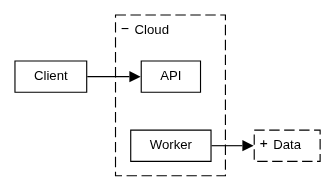
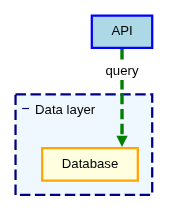
- group <id> declares a dashed group. A box is drawn with a solid outline.
- A group's contents line up with the arrows that reach them, which can make the group wider.
- group- <id> adds a − sign in its top-left corner that collapses it. The canvas writes group−, which reads as group-.
- group+ <id> draws the group collapsed, with a + sign: a box in the group's look, its contents hidden.
- An arrow to a hidden element ends on the collapsed group, keeping its side, label and style.
- An arrow between two elements the same collapsed group hides, or between such an element and that group, is not drawn.
- box- <id> and box+ <id> do the same for a box: box+ draws it as a box with a + sign, its contents hidden.
- Boxes and groups can contain other boxes and groups by ending their declaration with { and closing the block with } on its own line.
- Blocks may nest up to 10 levels deep.
- Arrows remain at the root level and may connect elements at any nesting level.
- A box becomes a solid container when it has children. An expanded group draws a container frame even when empty.
- Add: right-click and choose group, group− (collapsible), box or box− (collapsible). Right-click inside a container to add a child.
- Select or edit: click the border or label to select; double-click to edit.
- Nest: drag an element's label into a container. Drop outside all containers to move it to the root. A container moves with its contents.
- You cannot nest an element inside itself or its contents. Dragging changes nesting, not layer or position; use Layer and Position for placement.
- Delete: select the container and press Delete. Its frame and attached arrows are removed; its contents move up one level. A collapsed box or group is deleted with its contents.
- An element dropped on a collapsed box or group moves inside it and is hidden.
- Collapse or expand: click the − or + in the top-left corner of a box-, box+, group- or group+. The click switches the sign in its row; undo switches it back. It works in read-only views too.
Icons
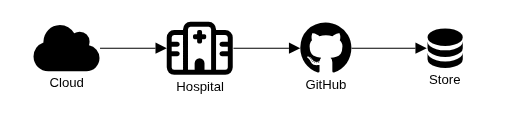
- Replace box with an icon-family keyword followed by a 4-5 digit hexadecimal Unicode code point, then the usual id and optional quoted label.
- materialdesignicons uses Material Design Icons code points.
- fontawesome6solid, fontawesome6regular, and fontawesome6brands use the corresponding free Font Awesome 6 code points.
- Icons have a label below the glyph and no surrounding box outline. They can be nested inside boxes or groups and connected like boxes.
- Icons cannot contain other elements. To put an icon together with other elements, place them inside a box or group.
- Edit or delete: double-click the icon to edit; select it and press Delete to remove it and its arrows.
- Drag from the icon to create an arrow; drag its label to change its nesting.
Shapes
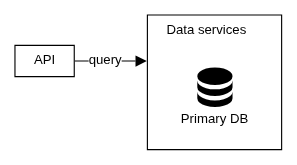
- Replace box with actor, boundary, control, entity or database to draw the shape sequence diagrams draw for that participant, e.g. database orders "Orders".
- Shapes have a label below the shape and no surrounding box outline. They can be nested inside boxes or groups and connected like boxes, and cannot contain other elements.
- The fill colour fills the shape and the line style draws its lines; a line weight of 0 hides the lines and keeps the fill. boxstyle and named styles apply to shapes.
- boundary is the shape; a dashed frame around elements is a group.
- Add: right-click and choose database or actor. The other shapes are written in the source.

Arrows
- <from>-><to>:<label> connects two elements. The colon is required; the label after it is optional.
- <- writes the same arrow in the opposite reading direction.
- --> and <-- use a dashed line. An explicit arrow style can override that line style.
- -- draws a line without an arrowhead, and --- a dashed one: the final - stands in place of the arrowhead, so three hyphens are the dashed line, not a longer solid one.
- api--db:reads: a line from api to db
- api-gateway--db:reads: a single hyphen belongs to the id
- api---db:reads: a dashed line
- api-[#red;2]-db:reads: a styled line; -[#red;2]-- is the dashed one
- A head is > or < for a filled one and >> or << for an open one, at either end of the line or at both:
- api->>queue:event: an open head; -->> on a dashed line
- api<<-queue:event: the same arrow in the opposite reading direction; <<-- dashed
- api<->db:sync: a head at each end, from api to db; <--> dashed
- api<<->>db:sync: two open heads; <<-->> dashed
- api<->>db:sync: each end has the head written for it, filled at api and open at db; <<-> the other way round
- Arrows are declared at the root level and may reference boxes, groups, or icons declared anywhere.
- Labels go after the colon, without surrounding quotes. Use \n for multiple lines.
- Create: drag from an element's body or group border onto another element, then confirm its label in the editor. Start outside the label, which moves the element, and avoid existing arrowheads and tails. The label may be blank; X, Cancel, or Escape discards the new arrow.
- Hold Shift before starting the drag for a dashed line (-->), Ctrl / Cmd for an open arrowhead (->>), or both (-->>).
- Move an end: drag the arrow's head or tail, or either end of a line, onto another element. The middle cannot be dragged.
- Edit or delete: double-click to edit the label; select the arrow and press Delete to remove it. Set arrow styles in the source; for sides see endpoint sides.
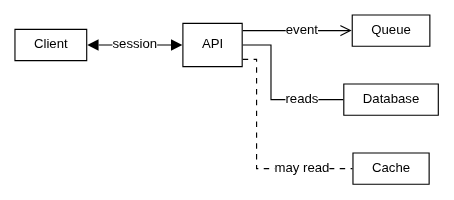
Choose an Arrow's Endpoint Sides
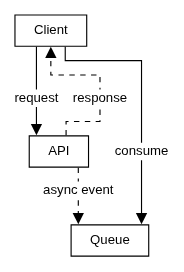
- By default, the layout chooses where each arrow attaches. Add n (north/top), e (east/right), s (south/bottom), or w (west/left) in parentheses to choose a side.
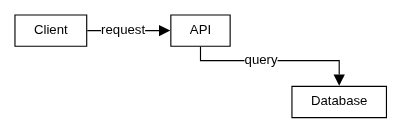
- Write the side next to the id on the arrow-facing end: client(e)->(w)api:request. You may specify either end or both. One blank may stand between the id and its side.
- Sides are physical: n is always the top, even when direction changes. The arrow token sets the relationship direction independently of the layout direction.
- The modifier belongs to the adjacent element. api(w)<-(e)client:request describes the same arrow as the example above.
- On the canvas, hold Alt (Option on a Mac) to choose a side while dragging a new arrow or an arrow's end. The highlight shows what will be written: the whole border for automatic, one wall for that side
- Alt + drag from an element: the arrow leaves by the wall nearest to where the drag starts
- Alt + drop on an element: the arrow end takes the wall nearest to the pointer
- drop without Alt: the end is automatic, and an end dropped back on its own element loses its side
- drop on the label: the end is automatic, with or without Alt
- The label is an element's middle: dragging it moves the element. The rest of the element and a narrow band outside it, or a container's border, start an arrow and are where Alt chooses a wall.
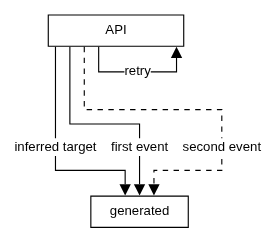
Inferred, Parallel, and Self-Referencing Arrows
- Referencing an id that has not been explicitly declared creates a plain box automatically.
- Repeating the same endpoints creates parallel arrows.
- An element may connect to itself.
- Inferred boxes appear at the root. Declare a box explicitly to give it a label, style, or parent container.
- Clicking an inferred box selects it, but there is no declaration line to focus in the source editor.
- Self-reference: drag vertically from an element's body or border back onto the same element until a loop appears, then confirm the label. You do not need to leave the element first. Short drags and clicks create no arrow. You can also write self-reference arrows in the source editor.
- Cycles and arrows against the layout direction are allowed; arrows keep the direction you wrote.
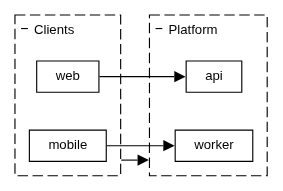
Container Arrows
- An arrow can terminate on a group or solid container, or cross container levels to a nested element.
- Start or end the drag on the container's border to attach the arrow to the container, rather than a child.
Links
- Add a clickable link to a quoted box label or arrow label with <link:https://example.com>text</link>.
- Links remain clickable in edit mode and Read Only Presentation Mode.
Element Styling
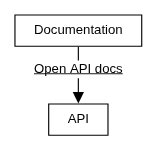
- A box or group declaration can end with #fillcolor or #fillcolor #linecolor;lineweight;solid|dashed.
- Use a hexadecimal color such as #ff0000 or a named CSS color such as #lightblue.
- Line weight is a relative thickness, from 0 (hidden) to 9.9. Use solid or dashed for the outline or arrow.
- Put a line style inside a styled arrow token, in brackets after the token's first hyphen, or before it when the token ends with it:
- -[#green;3]>, -[#green;3]->, -[#green;3]>>: ->, --> and ->>
- <[#green;3]-, <<[#green;3]-: <- and <<-, which end with their hyphen
- <-[#green;3]-: the dashed <--
- <-[#green;3]>, <-[#green;3]->: <-> and the dashed <-->
- -[#green;3]-, -[#green;3]--: the line -- and the dashed ---
Text Styling
- Text styling is parsed in quoted element labels and arrow labels. An unquoted id is always displayed as plain text.
- Bold: **bold**; italic: //italic//; small: --small--; large: ++large++.
- Monospaced: ""monospaced""; strike-through: ~~removed~~.
- Use \n for a line break and a backslash to escape a styling marker.
- Subscript: <sub>text</sub>; superscript: <sup>text</sup>.
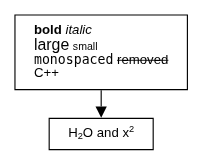
- Color: <color:#red>text</color>; size: <size:20>text</size>.
- Alignment: <align:left|center|right>text</align>.
- Stroke: <stroke:1:#red>text</stroke>; background: <background:#yellow>text</background>.
- Difference: <difference>text</difference>; word wrap: <wordwrap:20>text</wordwrap>.
Named and Type-Based Styles
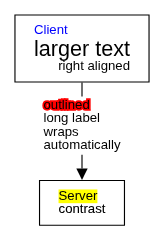
- style <name> <style> declares a named style.
- Reference it from a box or group with ##name, or from an arrow with -[##name]>.
- boxstyle, groupstyle, and arrowstyle set defaults for following elements of that type.
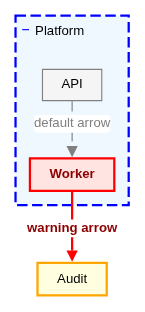
- arrowstyle #red: make the following arrows red
- arrowstyle #gray;1;dashed: an arrow has a line style and no fill, as in a styled arrow token; a second color is an error
- style s #red: the one color of a named style is its fill; an arrow that uses the style is colored by style s #red;1
- After the visual style, a comma introduces the default text style. All style directives are root-level.
- Define a named style before using it. Style names contain 1–50 letters or digits. A named style replaces the type default for that element; an inline visual style replaces its default visual styling.
Layout Direction
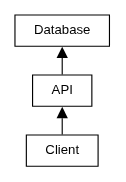
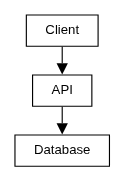
- direction <right|down|left|up> sets the overall direction in which the layout progresses. The default is right (left to right).
- It applies to the whole diagram, including nested containers. Right-click the canvas and choose direction to change it.
- Choosing the currently authored direction again removes the directive and restores the default, right.
- The layout positions elements and labels and routes arrows around them. Use nesting, layer and position, and endpoint sides to guide it.


Automatic Routing
- routing sets how arrows are drawn
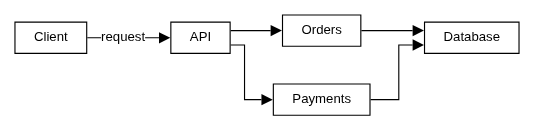
- routing orthogonal: horizontal and vertical segments with sharp bends; the default
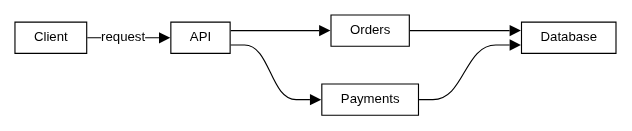
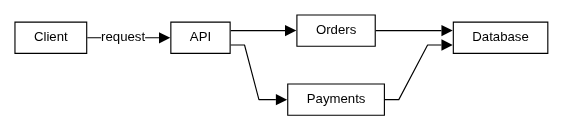
- routing curved: rounded bends, and an S-curve where an arrow steps sideways between layers
- routing polyline: a straight sloped segment where an arrow steps sideways between layers; other bends stay sharp
- Which arrows cross does not depend on the style.
- Bends and arrow labels are placed automatically and cannot be moved by hand. For a different route, choose endpoint sides or adjust spacing. If a route looks wrong, send us a support request with the diagram source.
Element Spacing
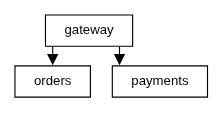
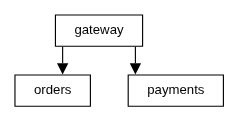
- hspacing <value> and vspacing <value> scale the spacing horizontally and vertically: the gaps between elements, the distance between parallel arrows, the room around arrow labels and the line before each arrowhead. Text, boxes and arrowheads keep their size, and so does the space between an arrow's end and the corner of its box.
- 1 is the default. Try 0.5 for a compact diagram or 1.5 for more room. 0 uses the minimum spacing between line strokes; arrowheads may still overlap at tight spacing.
- Values range from 0 to 99.9, with at most one decimal place. Negative values down to -99.9 are accepted and draw as 0.
- These root-level settings always refer to the screen's horizontal and vertical axes, regardless of direction.
- With focus outside text fields, + and - step both spacing settings by 0.1.
- To resize the whole drawing, including text, use zoom.
Compare the same diagram at compact, default, and roomy spacing:
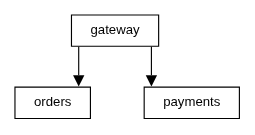
Layer and Position
- Layer and position directives place root elements relative to each other. A directive is placed in the block of the element it affects and is only supported for root-level elements
- Layers follow the direction: rows from top to bottom for direction down, columns from left to right for direction right
- Layer specifies which layer an element is in
- layer first: put the element in the first layer
- layer last: put the element in the last layer
- layer with api: put the element in the same layer as api
- layer before api: put the element in a layer before api's
- layer after api: put the element in a layer after api's
- Position specifies where an element is within its layer; first is left for direction down and up, and top for right and left
- position first: put the element first in its layer
- position last: put the element last in its layer
- position before api: put the element in api's layer, before api
- position after api: put the element in api's layer, after api
- A comma-separated list relates the element to each listed element
- layer before api,db: put the element in a layer before both api and db
- position after api, db: one blank after a comma is allowed, none before it
- A layoutconstraint { } block at the root gives the pattern of all root elements, one row per layer
- a,b,c: one layer of exactly a, b and c, in that order
- * alone on a row: any number of layers of other elements
- a,*,b: other elements between a and b in their layer
- {a,b}: a and b side by side, in either order
- Consecutive rows are consecutive layers; without a * at an edge, nothing more lies there
- Every root element is named once or laid out automatically where any * is
- Directives are always followed. One that contradicts an earlier directive, or names an element that does not exist, a nested element or the element itself, is marked as an error and ignored; a layout constraint that leaves out an element or cannot hold is marked and ignored as a whole
- Reversing the direction reverses the order of the layers, but not the positions within a layer
- Renaming, deleting or nesting an element on the canvas updates the directives that name it; a layoutconstraint row left without an element or a * is removed
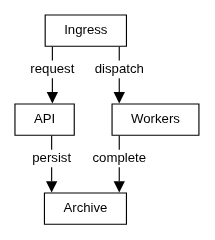
To keep two elements in the first layer together, give both layer first:
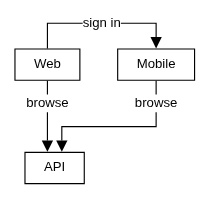
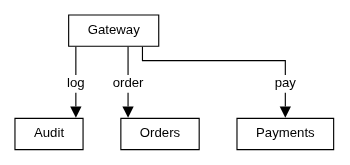
Cache shares the gateway's layer, Audit comes before it although the arrow points to Audit, and Payments comes after Orders:
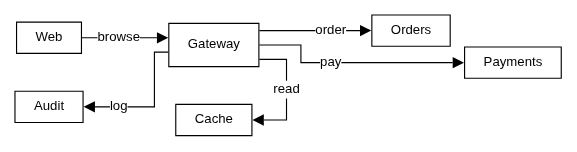
Payments comes after Orders, and Audit before both of them, all in one layer:
C4 Architecture Examples
The C4 model describes a system at four levels: system context, containers, components, and code. Use the levels that help explain your system; you do not need all four for every project.
The examples below show the system context, containers, and components of one order platform. Each is a separate, complete diagram using ordinary architecture syntax. Types such as [Software system] and [Component: Java] are display labels, not special keywords.
- Use a box or icon for each person, system, application, data store, or component. Give it a name, a type, and a short responsibility; include technology where useful.
- Use a group around the system or application you are opening up. A C4 container means an application or data store, not necessarily a Docker container or a visual container block.
- These examples use dashed arrows (-->) for directed relationships. Label arrows with what the relationship does; at the container and component levels, include communication technology where it matters.
- Key for these examples: blue elements belong to the order platform, gray elements are external systems, and the person icon is a customer. Type labels distinguish the levels without relying on color.
System Context
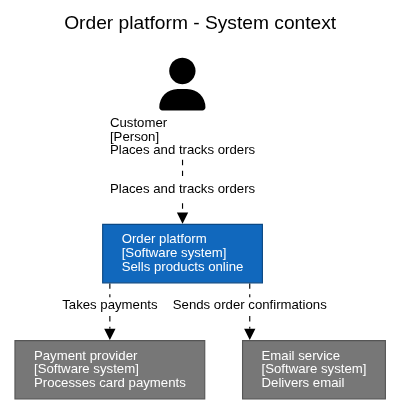
Show the customer and external systems around the order platform. Keep this view focused on responsibilities, leaving implementation details for the next level.
Containers
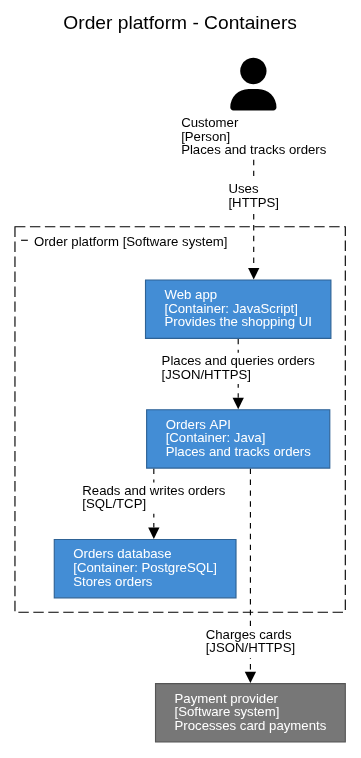
Open up the order platform to show its web application, API, and database. The customer and payment provider stay outside its group. This view focuses on ordering and payment; email delivery is omitted. It shows applications and data stores, rather than deployment machines.
Components
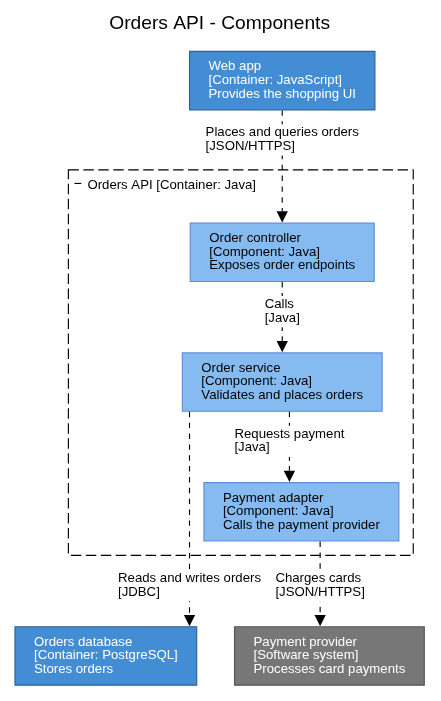
Open up just the Orders API. Its components appear inside the API boundary, with the web app, database, and payment provider outside. Each component label explains its responsibility.
Large Example
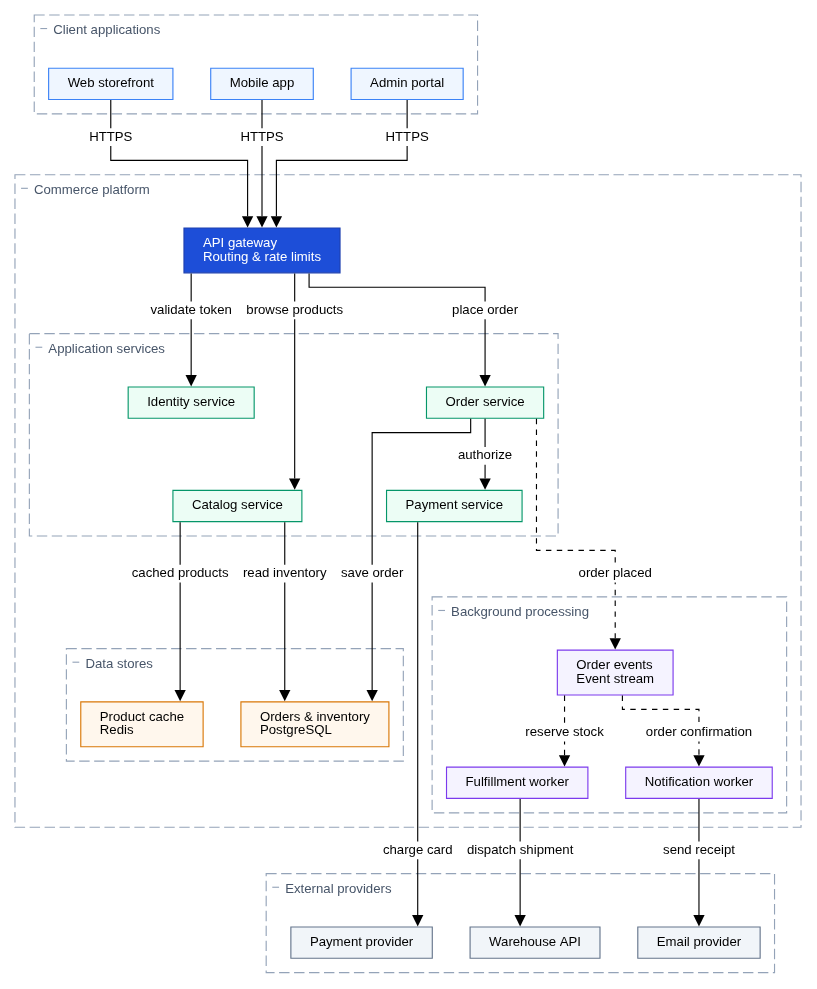
A commerce platform with three client applications, an API gateway, services, data stores, background workers, and external providers. Solid arrows show requests; dashed arrows show events. Named styles distinguish the roles of the elements.